Connecting Zoom to Namyt
Overview
Namyt connects to Zoom through OAuth 2.0 (Zoom App Marketplace) to automatically create a Zoom meeting link when a guest confirms a booking, and to delete that meeting if the booking is cancelled. By default Namyt creates meetings in Google Meet; Zoom is an optional alternative.
Namyt asks Zoom for two permissions only: to create meetings and to delete meetings. It does not access recordings, chat, participant lists or meeting content.
How to connect
- Open Namyt in Telegram: @NamytBot.
- Open Settings and choose «Zoom» under «INTEGRATIONS».
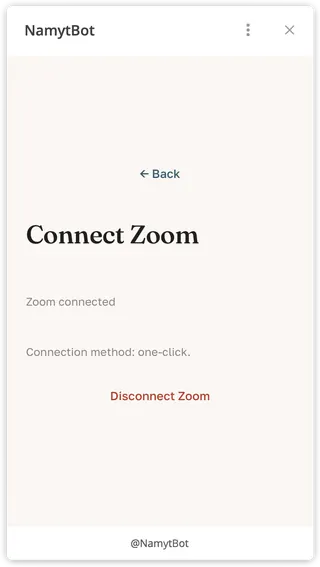
- On the «Connect Zoom» screen, tap «Connect Zoom». Zoom opens its standard authorization window: sign in to your Zoom account and grant the requested permissions.
- Back in Namyt, the status changes to «Zoom connected».
How to use
- In a meeting type, set «Meeting place» to «Zoom» and tap «Save».
- Share your booking link.
- When a guest confirms a booking, Namyt automatically creates a separate Zoom meeting and adds its link to the booking. If the booking is canceled, Namyt deletes that Zoom meeting.
How to disconnect or revoke access
- In Namyt, open Settings → «INTEGRATIONS» → «Zoom» and tap «Disconnect Zoom». Stored Zoom OAuth tokens and meeting links are deleted immediately.
- Alternatively, revoke access in Zoom: open the Zoom App Marketplace, then Manage, Added Apps, find Namyt and click Remove. Namyt receives the deauthorization notice from Zoom and deletes the stored tokens.
How Namyt uses Zoom data is described in the Privacy Policy. Questions: hello@namyt.com.